FAQ
Frequently asked questions
How do I add a new meal?
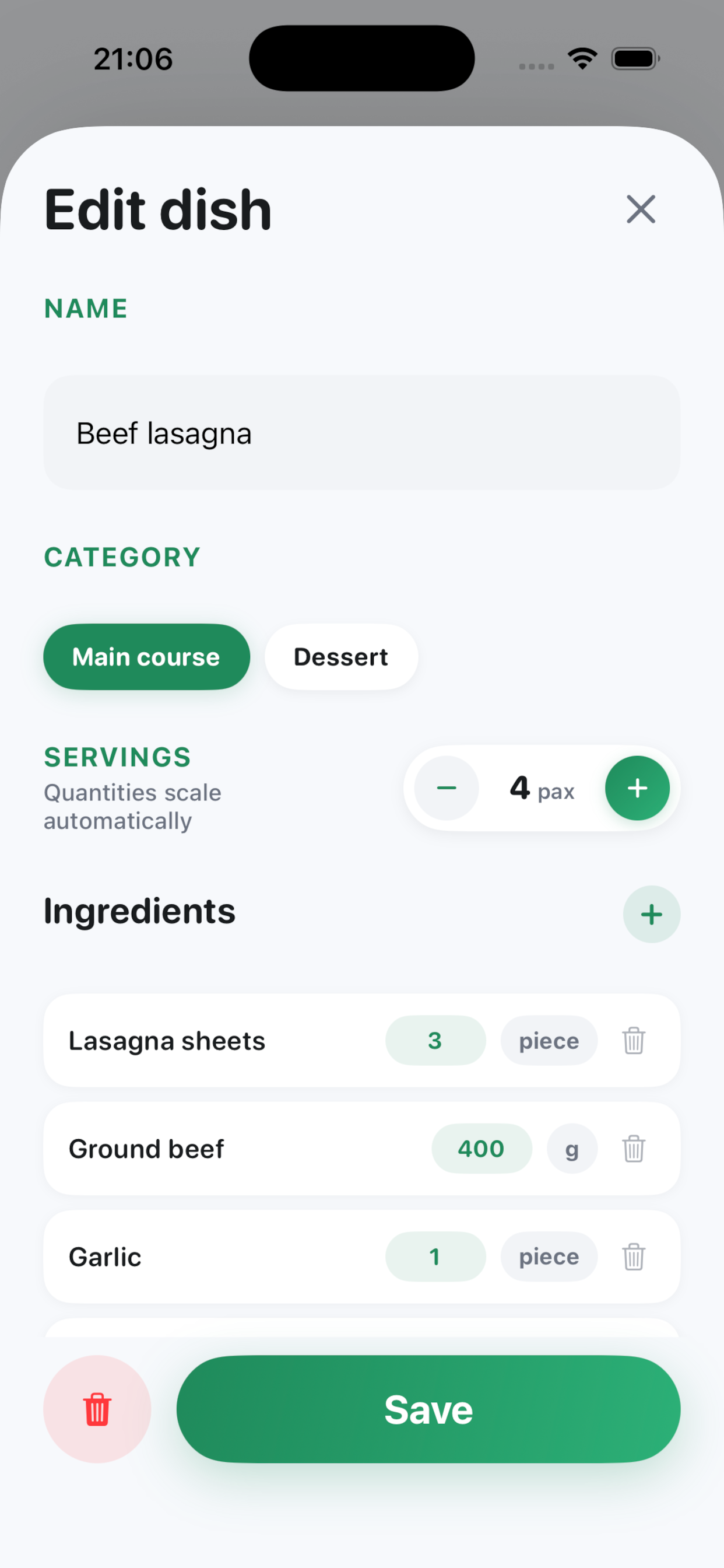
Open the Meals tab and tap the add (+) button. Give it a name and category, set the number of servings, then pick its ingredients and quantities from your list (adding new ingredients on the fly if needed). You can also add cooking instructions and a link to the original recipe.
How do I add a meal to my shopping list?
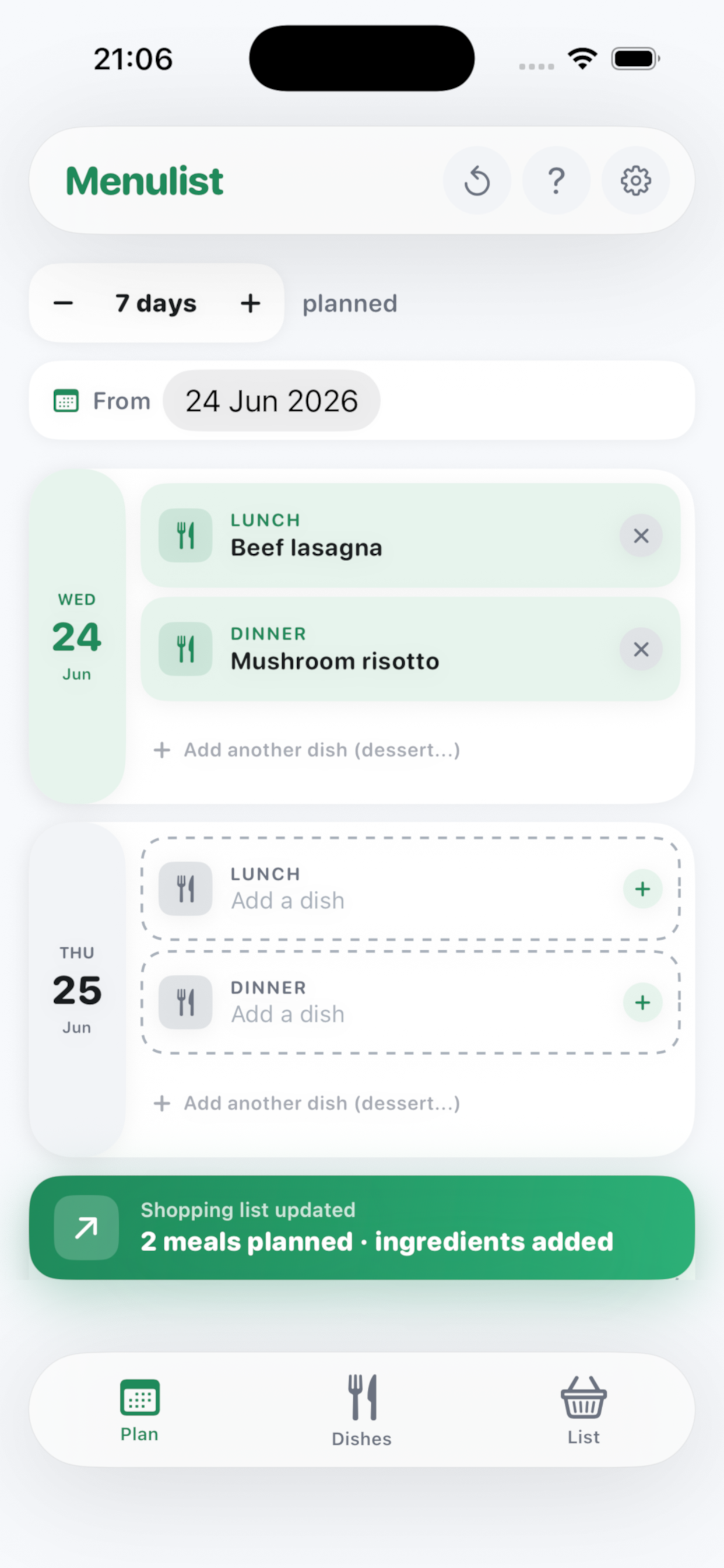
Open the Meals tab, tap a meal, and all of its ingredients are added to your shopping list automatically — with quantities combined if you've selected more than one meal that shares an ingredient.
How do I reorder aisles to match my store?
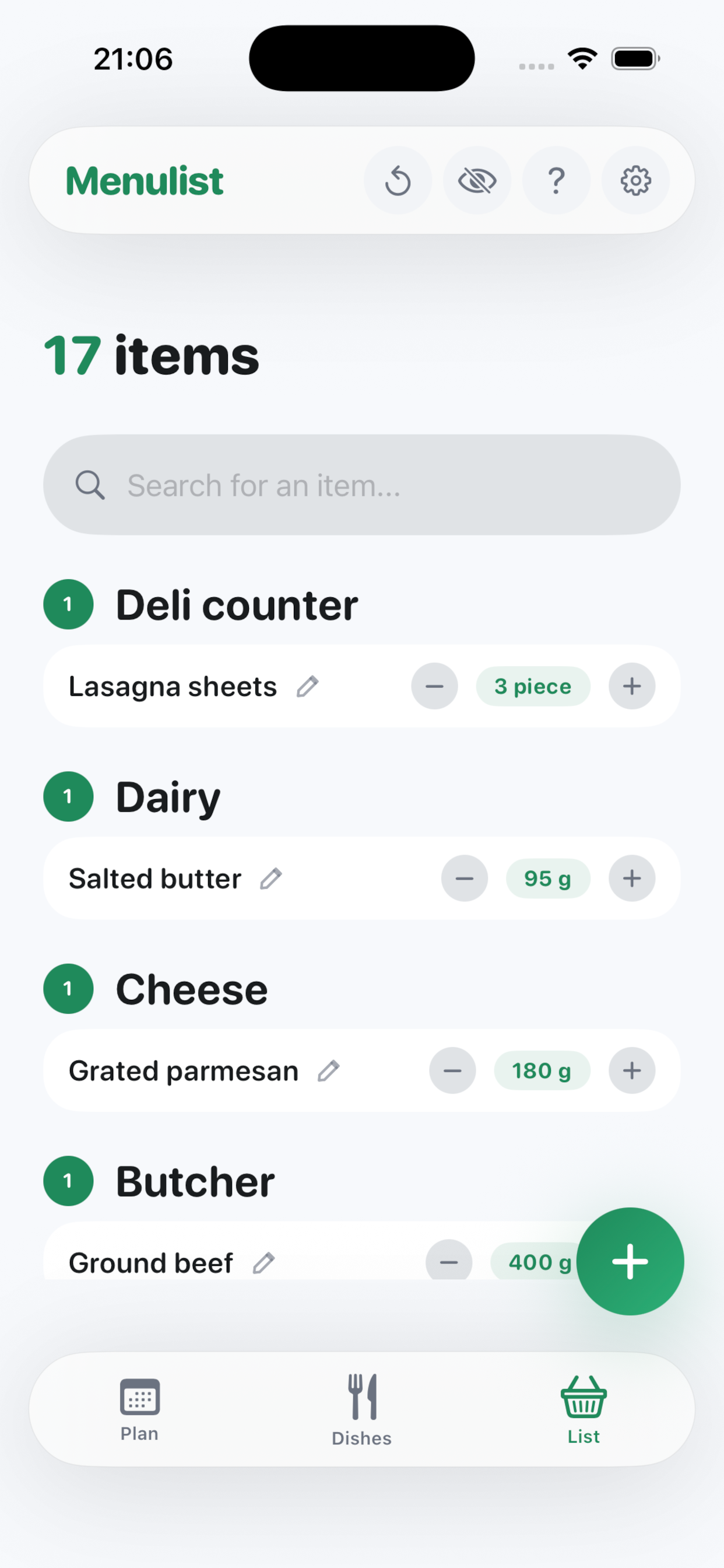
Go to Settings → Aisles, then drag and drop to reorder. Your shopping list will re-sort automatically to match.
How do I back up my data?
Go to Settings → iCloud Backup and tap "Back Up." On a new device, use "Restore" to bring your lists and recipes back. This backs up to your iCloud Drive — it isn't automatic multi-device sync.
What's included in the free version?
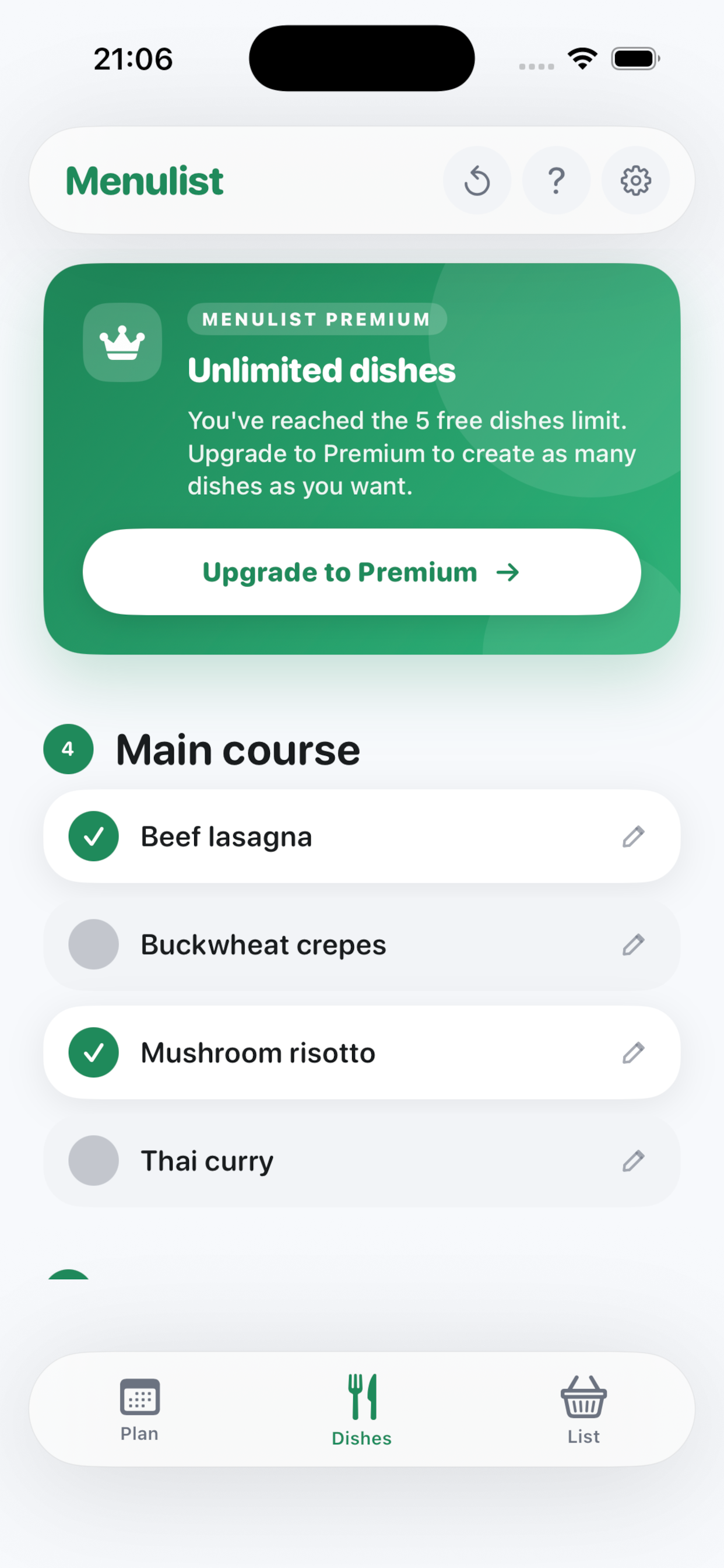
Everything, with one limit: up to 5 meals in your recipe book. Premium removes that limit.
How do I upgrade to Premium?
Open the Meals tab and tap the banner to unlock unlimited meals via a one-time in-app purchase.
Which languages does Menulist support?
English, French, German, Spanish, Italian, Dutch, and Portuguese — for the app interface, the built-in recipes, and the App Store listing.
How do I reset my shopping list?
Tap the reset icon in the shopping list header. This clears your current selections and restores each item's starting quantity — it does not delete your ingredients or meals.